Your website is live, and you have a domain. The next thing that makes your business look credible is an email address that matches it, like info@yourdomain.com instead of a Gmail or Hotmail address.
Squarespace makes this easy through Google Workspace, and if you are on an eligible annual plan, your first year is free. Here is how to set it up, including the one email that trips most people up.
Before You Start: What You Need
A domain managed by Squarespace. This is the simplest path, and it is the one this guide follows. If you bought your domain through Squarespace, or transferred it in, you are set. If your domain is bought and managed by a third party, see the section below.
A Core plan or higher on an annual subscription. This is what gets you one year of Google Workspace free. Check your plan before you start, because the offer depends on it.
A public homepage. Squarespace needs your homepage to be public, not hidden behind a site-wide password. If you have not hit publish yet, do that first. (We cover that in our post on what to do after designing your site.)
A personal email address you can access. You will need one during setup, and it is where your first login details arrive.
What If My Domain Is Managed by a Third Party?
If your domain is registered and managed somewhere else, like GoDaddy, the cleanest option is to purchase Google Workspace through that provider, since they manage your domain settings.
Squarespace's help guide notes that third-party domains can also sign up through Squarespace if the domain is correctly connected to the site, but you will need to add the email (MX) records manually, following instructions Squarespace emails you. If you want the free year and the least hassle, having Squarespace manage your domain is the way to go.
Step 1: Open Your Domain and Choose Email
In your Squarespace Domains dashboard, click your domain, then click Email and choose Get Started.
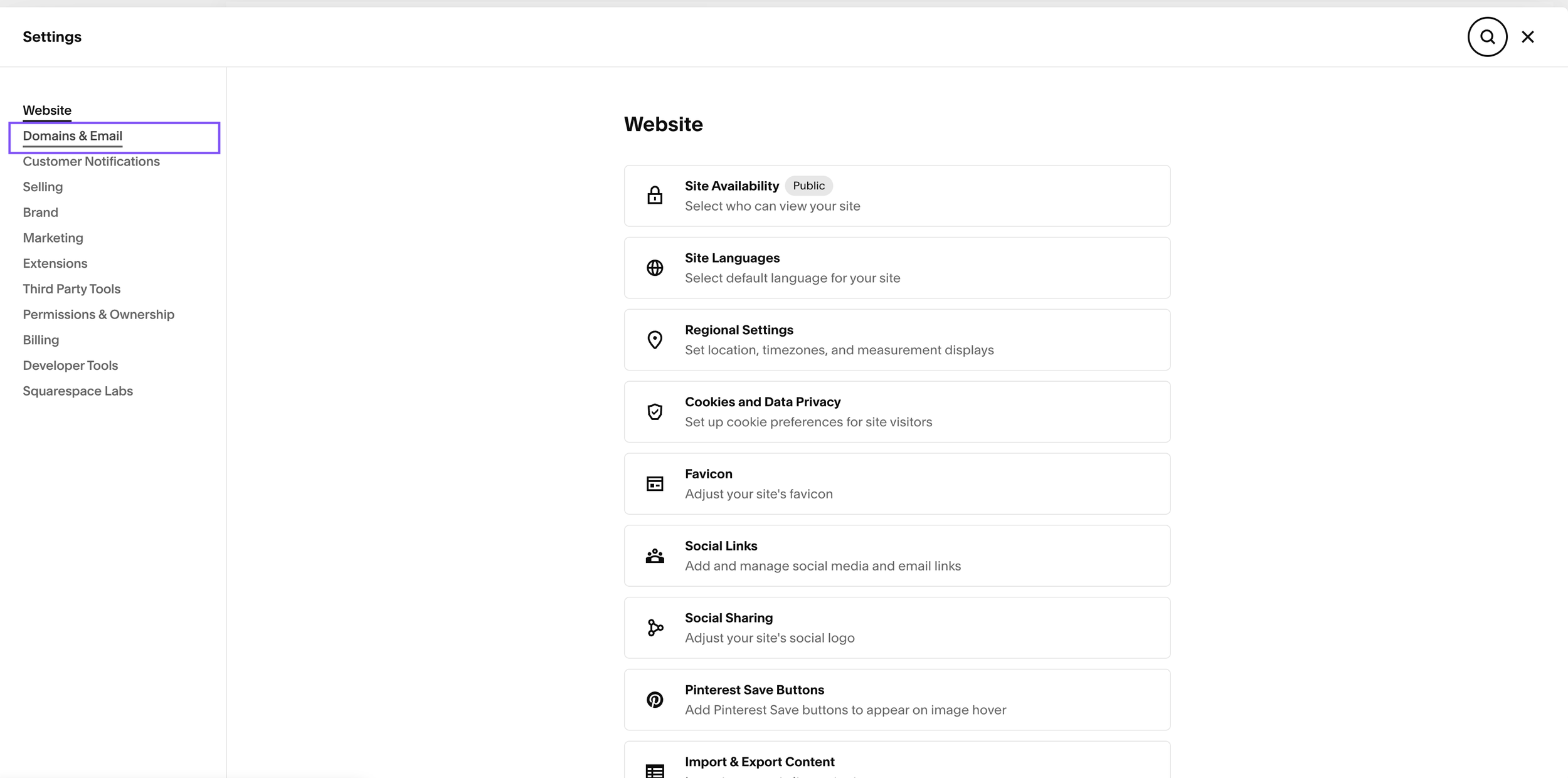
Step 2: Select Google Workspace
Choose Google Workspace as your email provider.
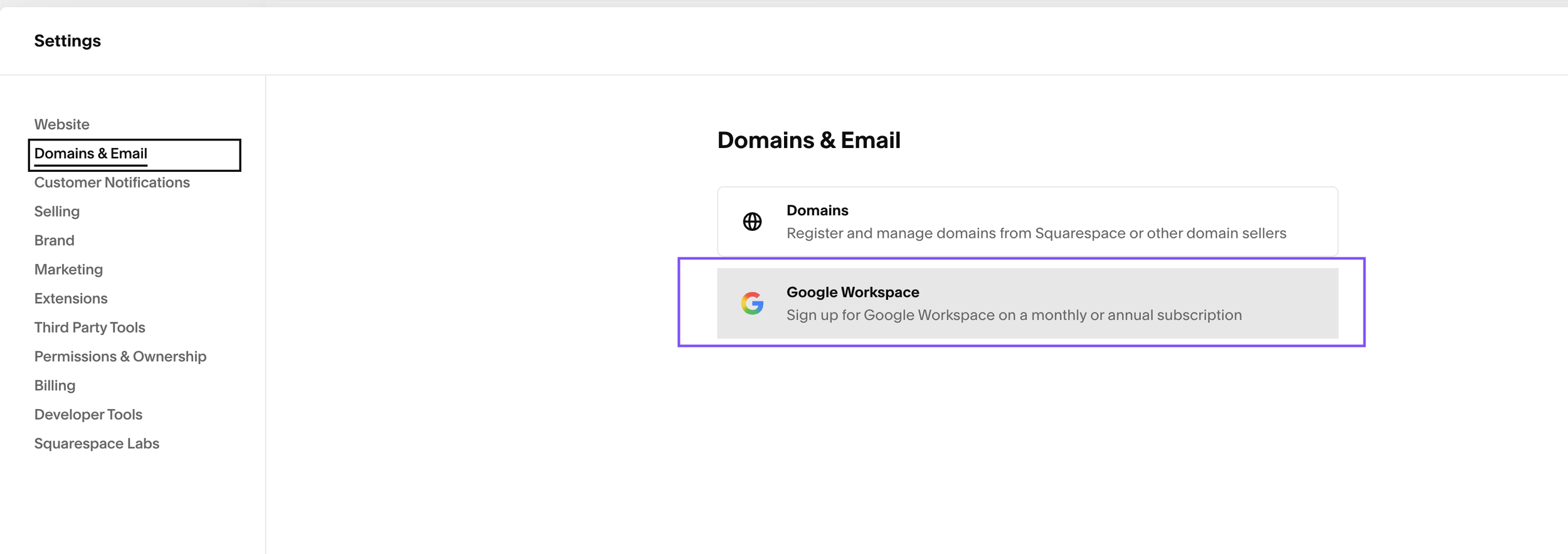
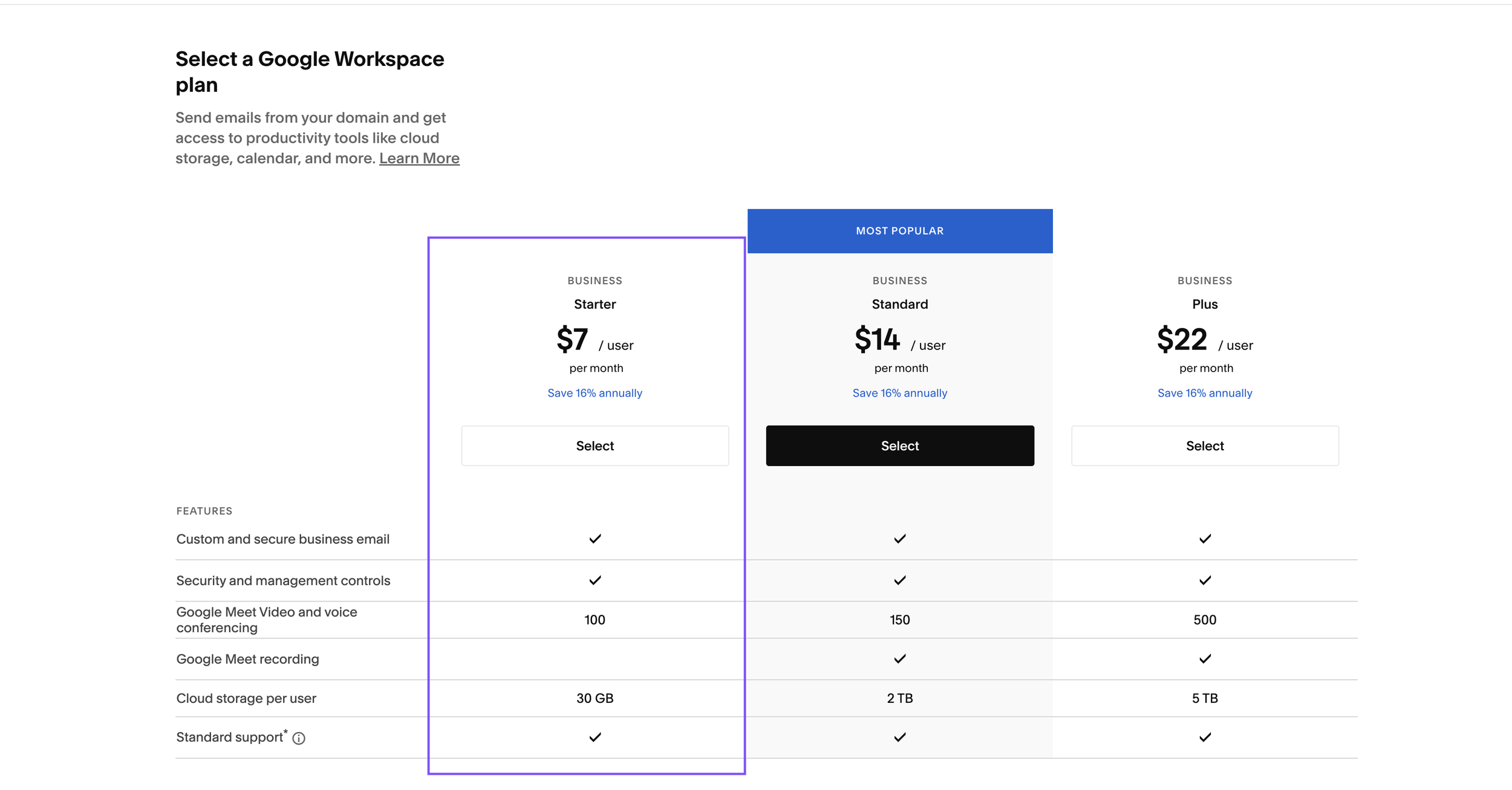
Step 3: Select the Starter Plan
Pick the Starter plan, which covers one user with the Google tools most small businesses use every day, like Gmail, Calendar, Drive and Meet.
Step 4: Choose Annual Billing and Check Out
Choose Annually before you select your plan. Then fill in your name, the username you want (the part before the @), your domain, a personal email address, your organization, country and postal code. Add a payment card and confirm.
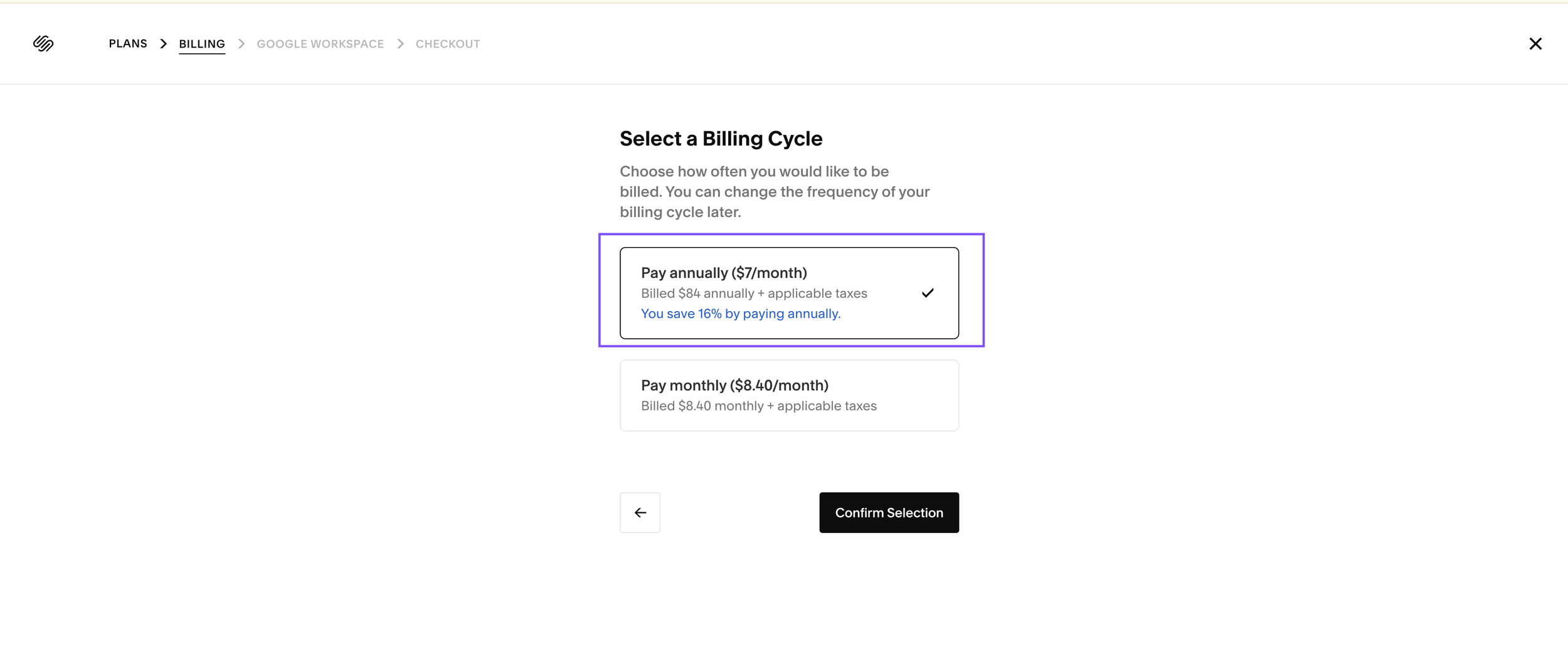
Do not panic if you see a price at first. You will see a cost when you start, but the discount for your free year is applied when you check out. Look over the order summary before you confirm.
Tip: Use a card that does not require 3D Secure verification, because Squarespace notes that it can cause the payment to fail.
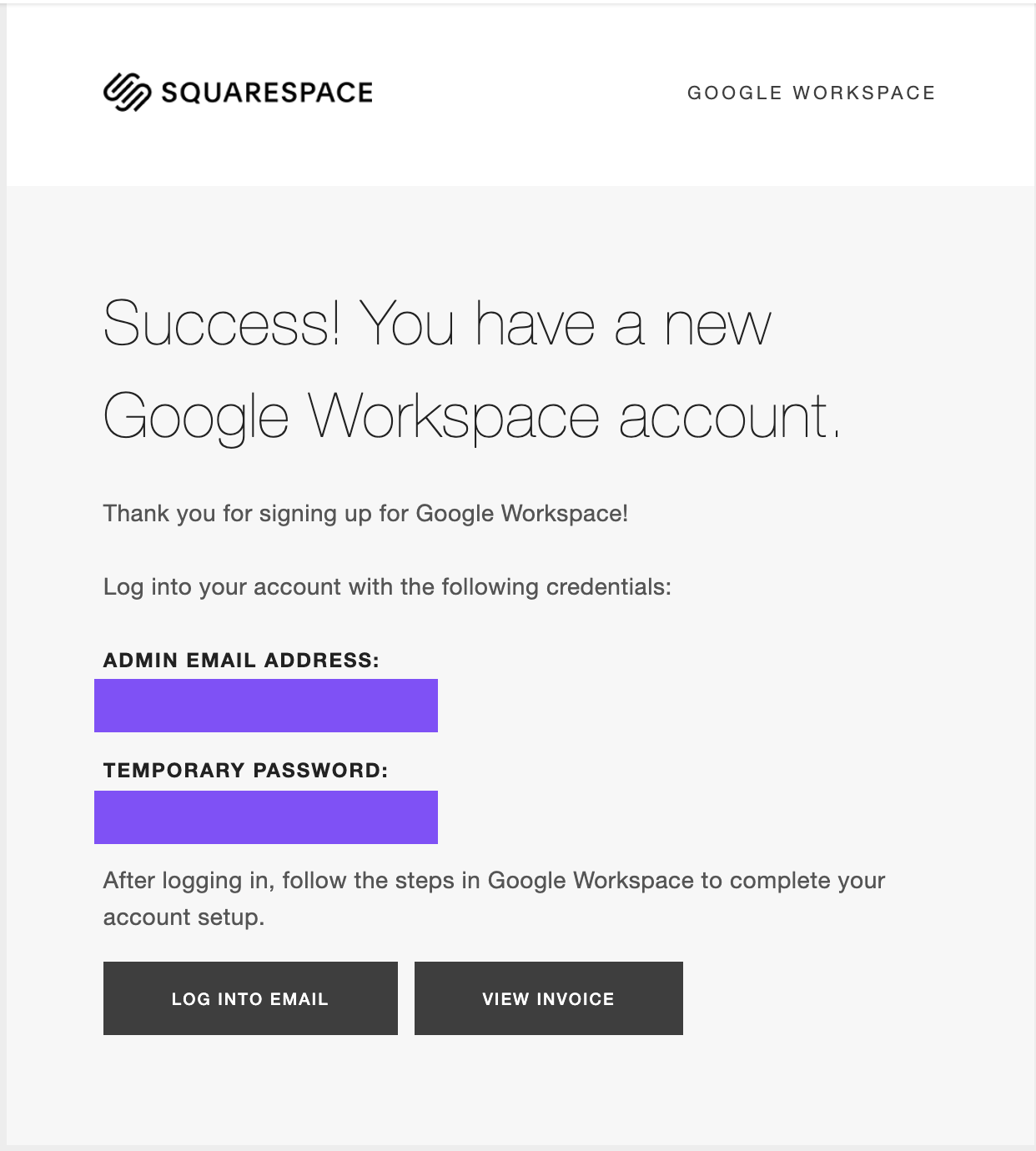
Step 5: Find Your Welcome Email
Once your account is set up, you will receive a welcome email with a temporary password. It does not go to your new domain email. It goes to the personal email address you entered during sign up, which for most people is the email tied to their Squarespace account. Check your spam folder if you do not see it.
Step 6: Log In for the First Time
You have two ways to do this. The easiest is to follow the link in the welcome email. Or you can log in manually:
Open a private or incognito window, so you do not get sent into a personal Google account.
Go to mail.google.com and enter your new domain email, for example info@yourdomain.com.
Use the temporary password from the welcome email, then set a new password when prompted.
Accept the terms. You will land in your new inbox.
If the username you chose was already taken, your welcome email may give you a temporary username instead, something beginning with "squarespace-provisioned-admin". Use that to log in.
Step 7: Verify Your Domain and Let Email Connect
After you log in, you will reach the Google Admin console, where you may be asked to verify your domain. Complete the prompt. If your domain uses Squarespace's default nameservers, the email (MX) records are added for you automatically. Changes can take up to 48 hours, so if email is not working right away, give it time.
Managing Your Email Later
To add users, create aliases or change settings, go to admin.google.com and sign in with the same login. You can also manage users from the Domains dashboard in Squarespace.
A smart safety tip: do not use your new Google Workspace address as your Squarespace login. If you ever lose access to one account, you do not want to be locked out of both.
Frequently Asked Questions
Is Google Workspace free with Squarespace?
You get one year of Google Workspace free for one user when you are on an eligible annual website plan, such as Core or higher. After that, it renews at Google's standard rate and is billed separately.
Why did I not get an email at my new address?
Your welcome email and temporary password go to the personal email address you entered during sign up, not your new domain email. Check your spam folder if you cannot find it.
Do I need my domain managed by Squarespace?
It is the easiest route, and it is how you get the free year and automatic email setup. Third-party domains can work if they are connected to Squarespace, but you will need to add MX records yourself.
How long until my email works?
You can usually log in right away, but domain verification and email records can take up to 48 hours to fully take effect.
Can I add more email addresses?
Yes. Add users or aliases in the Google Admin console or from the Domains dashboard. Extra users are billed at Google's regular rate.
Want a hand setting up your professional email, or making sure your domain and site are connected correctly?
Get in touch and we will take care of it.